Adding a second Nursery for twins or two children
Written with AI assistance.
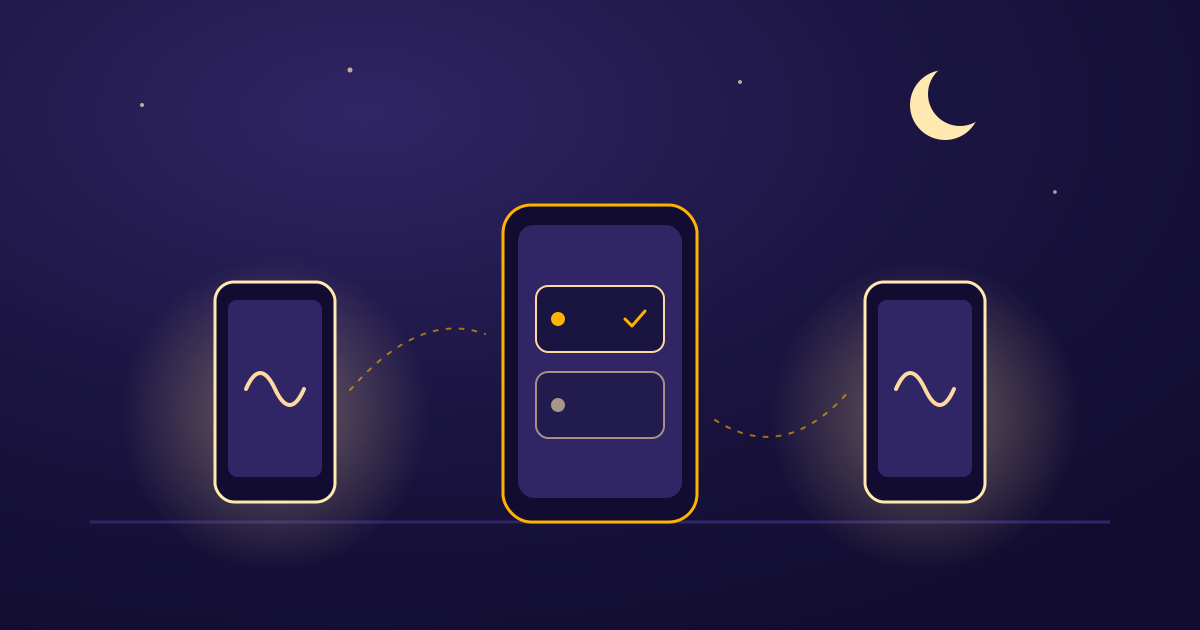
One child wants a lullaby; the other has already finished listening. With two Nurseries, you can give each its own Hub and control their playback separately from the same Remote.
A Nursery represents one audio setup, not one child. If twins share the same audio output, one Nursery can serve that shared setup. A second Nursery makes sense when you want separate playback, each with its own Go-To Sound, volume, and Sleep Timer.
Before you add another Nursery
You need your signed-in Remote and a second device to run as the new Hub. Keep the first Hub paired to the first Nursery. Each Nursery has one paired Hub; adding a second Nursery does not turn the existing Hub into two independent audio outputs.
Creating your first owned Nursery is free. Creating another requires paid access on your own account. If you tap + New Nursery without that access, the app opens the plan choices before showing the creation form.
There is a useful distinction here: creating a Nursery is different from joining one that another parent owns. Nurseries you join as a member do not count toward your owned-Nursery creation limit. Shared access to another parent's unlocked Nursery also does not unlock extra Nursery creation on your account.
Create it from the Nursery list
On the Remote screen, tap the Nursery name at the top. This opens Nurseries, where you can choose an existing Nursery, join one, or create another.
- Tap + New Nursery.
- Enter a name you will recognize quickly, such as “Maya's Nursery” or “Upstairs Nursery.” The Create button becomes available once you enter a name.
- Tap Create. The new Nursery becomes selected on this Remote.
- On the confirmation screen, tap Pair Hub to connect its Hub, or Done to come back later.
Choose names that make the difference obvious at a glance. Two entries both called “My Nursery” make it harder to tell which playback controls you are about to use.
Pair the second Hub to the new Nursery
Open Lullabies in Hub Mode on the second device and use the 4-digit Pairing Code shown there. Enter it on the Remote's Pair Hub screen. Both devices need an internet connection for this pairing flow.
Use the second Hub's code for the new Nursery. If the Remote asks whether you want to replace a current Hub, stop and check which Nursery you selected: replacing the first Nursery's Hub is a different action from adding a Hub to the second Nursery.
If you chose Done earlier, select the new Nursery and open Settings. The Hub section lets you return to Pair Hub. Creating a Nursery gives it a place in your list, but it cannot play audio until a Hub is paired.
Give each Nursery its own sound
Select the new Nursery before choosing its Go-To Sound. That choice belongs to this Nursery, so it can differ from the first Nursery's choice. The lullabies page explains the available audio choices.
A Sleep Timer also applies to the selected Nursery. You might start a finite Sleep Timer in one Nursery while leaving the other paused. Before changing volume or starting playback, read the Nursery name at the top of the Remote.
Switch without re-pairing
Tap the Nursery name again and choose the other entry. The selected entry has a check mark in the list. Switching changes which Nursery this Remote controls; the switch itself does not stop playback on the Hub you just left.
Once both Hubs are paired, you can move between the two entries without entering another Pairing Code. For a first check, select each Nursery in turn, confirm its name and Go-To Sound, and try its playback controls. That gives you a familiar way to tell the two setups apart before you need to change one in a hurry.