Giving a grandparent or babysitter Remote access
Written with AI assistance.
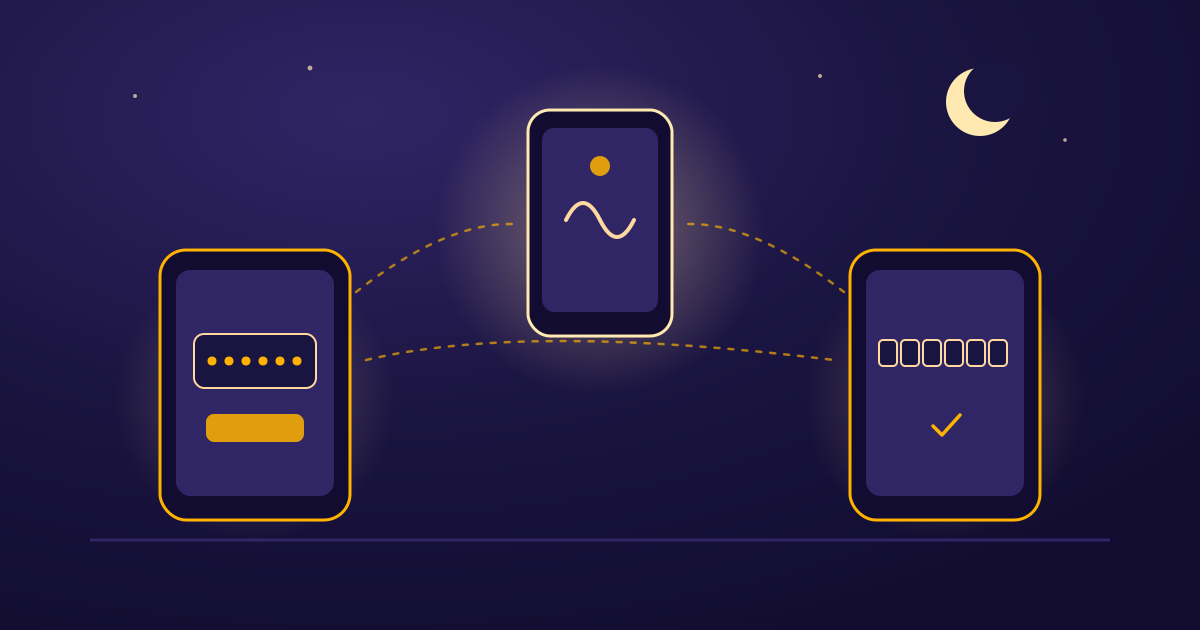
When a grandparent or babysitter takes over for the evening, you do not need to leave your unlocked phone on the counter or share your personal sign-in. In Lullabies, the Nursery owner can issue a Caregiver Key so another person's personal account joins the existing Nursery as a member and uses their own phone as a second Remote.
Once they join, both Remotes talk to the same Hub and control the same Nursery. The setup takes one 6-character code from the owner's Settings and one important choice on the caregiver's welcome screen.
Caregiver Key vs. Pairing Code: two different doors
The most common mix-up when adding a second phone is reaching for the wrong code — or choosing the wrong role on the first screen. Lullabies uses two separate codes for two different jobs:
- A Caregiver Key is 6 characters. The Nursery owner creates it in Settings to invite another person's personal account to join the Nursery as a member. To make shared codes easier to read across a text message or handwritten note, the 6-character alphabet uses uppercase letters and numbers while leaving out
0,O,1, andI. - A Pairing Code is 4 digits. The Hub displays it on its own screen for 10 minutes to connect that Hub to a Nursery. Only the Nursery owner can pair a Hub.
Do not ask a grandparent or babysitter to open Hub Mode on their phone, and do not type a 4-digit Pairing Code from their phone into Pair Hub on yours. When a device enters Hub Mode, it signs in with an anonymous Hub identity. That anonymous identity belongs exclusively to a Hub: it owns no Nurseries, grants no Remote capability, and cannot redeem a Caregiver Key. If the Nursery owner claims a 4-digit Pairing Code shown on a caregiver's phone, Lullabies replaces the Nursery's paired Hub with the caregiver's phone instead of giving them Remote access.
If the caregiver already tapped This device is the Hub on their phone by mistake, they can open Settings on that device and tap Use this device as a Remote to return to the welcome screen.
Step 1: Create a Caregiver Key on the owner's Remote
Only the Nursery owner can issue an invitation for that Nursery. On the owner's Remote:
- Open Settings and go to the Nursery section.
- Under Caregiver invitation, tap Create invitation.
- Use Copy or Share to send the 6-character code to the grandparent or babysitter.
A Caregiver Key stays valid for 48 hours from the moment it is created. If you reopen Settings and tap Create invitation again while that code is still unexpired, Lullabies returns the same active code rather than replacing it. Because redeeming a code happens over the internet, you can text it to a grandparent or babysitter before they arrive.
Each Caregiver Key is single-use. Once one person redeems it, that code is consumed. If you are inviting two people — for example, both grandparents on their own phones — tap Create invitation again after the first person has joined to generate a fresh 6-character code for the second phone.
Step 2: Join the Nursery on the caregiver's phone
The grandparent or babysitter installs Lullabies on their own phone and signs in with their personal account (Apple, Google, or a verified email and password). An anonymous Hub identity cannot join a Nursery.
From there, they can reach the Join a Nursery screen in any of three ways:
- During first-time setup: On the "Where is the music playing?" screen, tap Join a Nursery ("Have an invite code? Join their Nursery and share the same Hub.") instead of This phone is the Remote or This device is the Hub.
- From the Nursery list: Tap the Nursery name at the top of the Remote screen to open Nurseries, then tap Join a Nursery.
- From Settings: Open Settings, go to Account & device, and tap Join a Nursery.
Have them enter the 6-character code. The form submits automatically as soon as the sixth character is typed, or they can tap Join Nursery. Up to five attempts are allowed per minute if a letter is mistyped.
Once the code is accepted, Lullabies confirms the Nursery name, summarizes what a member can do, and opens the Remote after two and a half seconds. In their Nurseries list, the shared Nursery appears with · Member next to its name.
What works right away — and what needs a separate switch
Joining a Nursery gives the caregiver's Remote immediate access to audio playback for that Nursery:
- Audio and timer controls: A member can play or pause audio, adjust volume, pick the Nursery's Go-To Sound, and start or extend a Sleep Timer.
- Shared Paid access: When the Nursery owner has Paid access (through a Lifetime unlock or an active Monthly subscription), that access covers the Nursery's shared paid controls and routines for its members. The grandparent or babysitter does not need a second purchase, and joining someone else's Nursery does not count against their own free Nursery creation limit.
Baby Monitor permissions are handled separately. Nursery membership never turns on camera or microphone access by itself — every monitoring permission starts off for a new member.
If the Nursery owner has Paid access and wants the caregiver to check in through the Hub, the owner opens Settings → Nursery → Baby Monitor access. Each caregiver has four independent switches:
- View live video
- Listen to Nursery audio
- Capture Moments
- Receive possible-cry alerts
You can turn on only the permissions that fit the visit — for example, enabling Listen to Nursery audio and Receive possible-cry alerts while leaving View live video off. Changes apply immediately, and turning a permission off ends any active monitoring session right away.
Several parts of the Nursery always remain with the owner:
- Moments inbox: Even if a caregiver is granted Capture Moments, the saved Moments inbox belongs to the Nursery owner.
- Night Insights: Opt-in activity history (which records reported playback, requests, possible-cry alerts, and Hub availability, and does not measure or infer sleep) is visible only to the Nursery owner.
- Private Uploads and Lullaby credits: Personal audio Uploads and Lullaby credits stay with each individual account and are never shared across members.
- Hub pairing and Nursery deletion: Only the owner can pair or unpair the Hub or delete the Nursery.
Naming caregivers and ending access after a visit
When someone joins, they appear under Settings → Nursery → Caregivers (and on the Baby Monitor access screen) with a short 8-character account code. The Nursery owner can tap Name next to that entry to save a private label up to 80 characters — such as "Grandma" or "Friday sitter." Only the Nursery owner sees this label.
When a babysitter's evening is over, you can revoke access from the same Caregivers list in Settings → Nursery: tap Remove next to their name and confirm. They lose access to the Nursery immediately, and any monitoring permissions or possible-cry alert settings for their account are cleared at the same time. A caregiver can also remove themselves at any point by opening Settings → Nursery and tapping Leave Nursery.