Setting up your first Nursery, in order
Written with AI assistance.
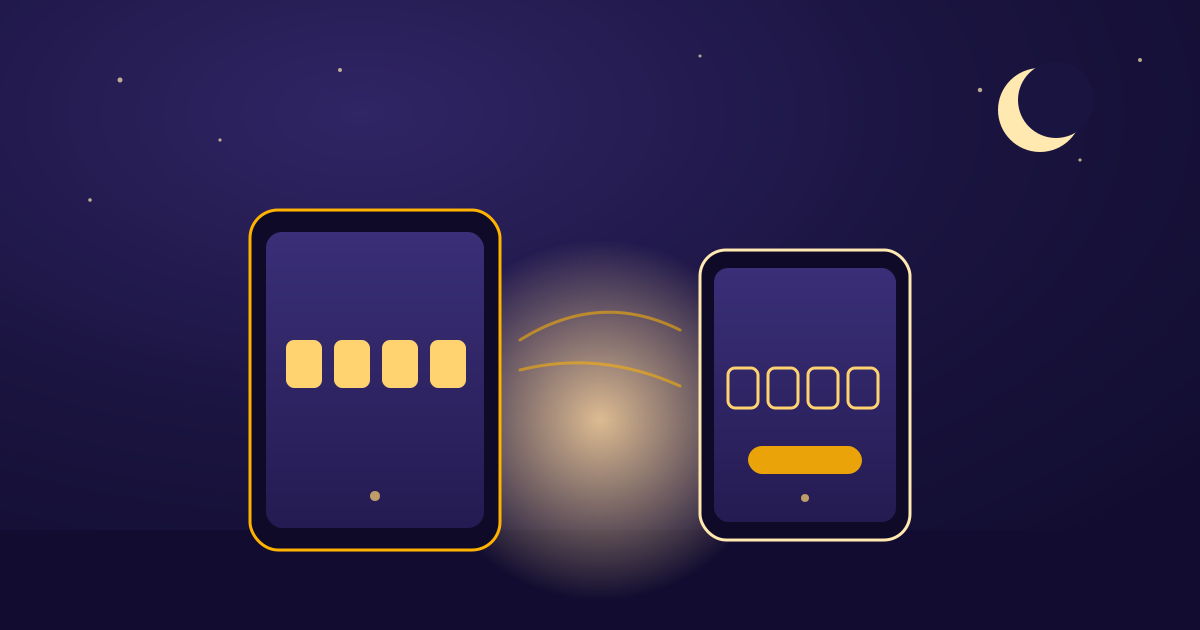
The first time you open Lullabies, it does not ask you to pick a sound. It asks which device you are holding, then for a name, then for a code. That order is the setup. A Pairing Code has to land on a Nursery that already exists, which is why the name comes before the code.
Two devices, two jobs
Lullabies plays audio from one dedicated device left in the Nursery — the Hub — controlled from the phone you keep with you, the Remote. A Remote never plays the audio. A Hub does.
The first screen is "Where is the music playing?"
- This phone is the Remote. Control the Hub from here. Keep this phone with you.
- This device is the Hub. Leave it in the Nursery. It plays the audio.
They are not the same phone. The usual first setup is the phone already in your hand as the Remote, and a spare phone or tablet as the Hub.
The Hub plays through whatever output the Nursery already has: its own speaker, a Bluetooth speaker, or AirPlay. You choose that on the Hub itself, not on the Remote. For audio only, the Hub can sit anywhere that keeps that connection — a Bluetooth speaker still has to stay in range. If you also use the Hub's camera, the Hub has to be physically in the Nursery.
A watch can be a Remote later. Watch control starts a preset, pauses, or changes volume from your wrist, for a Nursery that is already paired. It does not enter the Pairing Code. That still happens on the phone.
Name the Nursery before you pair
A Nursery is one room, one Hub, one set of controls. The next screen asks you to name it. Until that name exists, there is nothing for a Hub to join: opening the pair step without an active Nursery sends you back to naming one.
Name the place you will recognize later, not the gadget. This post is only the first Nursery.
If someone else already created the Nursery and sent you a code, that is a different door. An invite code is six characters, shared from their Settings, and it joins you to their Nursery instead of creating your own. Do not type it into the Hub pairing field. That field is four digits. It will not fit, and it is not supposed to.
The Pairing Code is four digits, and it does not last
Open Lullabies on the Hub. Once that device is signed in, it shows a 4-digit Pairing Code on its own, with the hint "Enter this code on the Remote." Type those four digits on the Remote and tap Pair Hub.
A few details that save a second attempt:
- Keep the leading zeros. A code like 0042 is a real code. Dropping the zeros makes it a different number, and the Remote will say it does not look right, or that it has expired.
- It lasts ten minutes. The Hub shows a countdown. When that hits zero, the Hub requests a fresh code by itself. Use the one on the screen now, not one you wrote down earlier.
- It is used once. After a successful pair, that code is consumed. Another Remote cannot reuse it.
- Five attempts are allowed inside a minute. The next one is told to wait a minute and try again. That is a limit on guesses, not a sign the Hub is broken.
- Both devices have to reach the server. Issuing the code and claiming it are both online steps. If either device cannot get through, the Remote says it could not reach the server. Check the connection before you assume the digits are wrong.
You can skip this step. The link on that screen says "Skip — pair later from Settings." The Nursery still exists; it just has no Hub yet, so nothing will play until you come back. In Settings, that return path is the Hub row: tap Pair Hub and enter a new code.
If this Nursery already has a Hub and you are replacing it, the Remote asks first. The old device stops being the Hub. It would need a new Pairing Code to come back.
Once the code is accepted, there is no extra button. The app waits two and a half seconds, then moves on.
Then pick a Go-To Sound
The last step is the sound, on purpose. A Go-To Sound is the per-Nursery default — the audio one-tap presets play. You pick it from the Curated catalog, and you can change it later from Change Audio on the Remote. Skip is allowed here too. Pairing does not wait on a sound choice, which is why the sound comes last.
That is the whole first setup: a Remote and a Hub, a named Nursery, a Pairing Code entered on the Remote, then a Go-To Sound. The code is the link. Everything before it is choosing which device holds which job.